
January 22, 2026
How to Enable Hibernate on Windows and When to Use it
Justin Golden

Windows 11 offers several ways to pause your computer when you’re not actively using it: Lock, Sleep, and Hibernate. Hibernate is often hidden by default, but it can be extremely useful—especially for laptops. This guide explains how to enable Hibernate, how it differs from Sleep and Lock, and when you should use each option.
What Is Hibernate?
Hibernate saves your entire session (open apps, files, and system state) to your disk and then completely powers off the computer. When you turn it back on, everything resumes exactly where you left off.
Unlike Sleep, Hibernate uses no power at all while the computer is off.
Hibernate vs Sleep vs Lock
Lock
- Keeps everything running
- Just locks the screen
- Uses full power
- Best for: stepping away briefly while staying logged in
Sleep
- Keeps your session in memory (RAM)
- Uses a small amount of power
- Wakes up very fast
- Best for: short breaks (minutes to a few hours)
Hibernate
- Saves session to disk, then powers off
- Uses zero power
- Takes slightly longer to resume than Sleep
- Best for: long breaks, travel, or saving battery overnight
When Should You Use Hibernate?
Hibernate is ideal when:
- You’re on a laptop and want to save battery
- You won’t use your PC for several hours or days
- You want to keep everything open but fully shut down
- You’re traveling or closing the lid for a long time
Desktop users can also benefit, especially if they want a clean power-off without losing work.
How to Enable Hibernate in Windows 11
Hibernate is usually disabled by default. Here’s how to turn it on.
Step 1: Enable Hibernate Mode
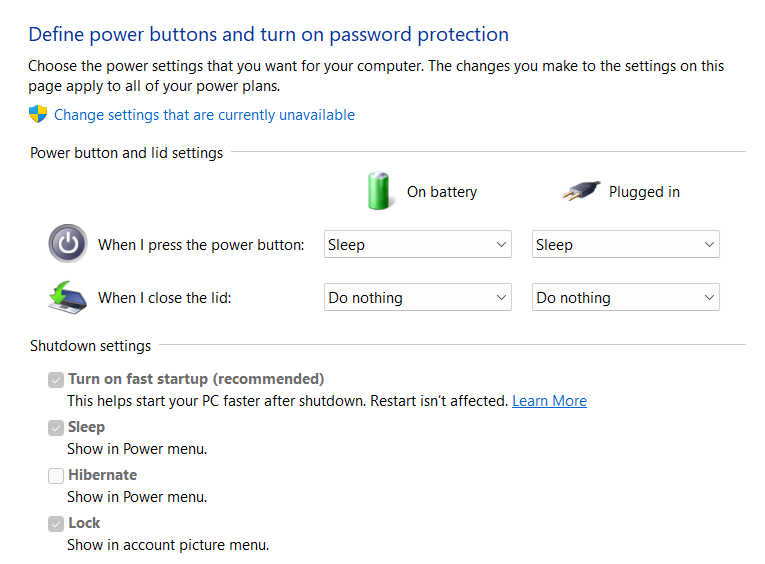
- Hit Start button and type “change what closing the lid does” and select it
- Click Change settings that are currently unavailable
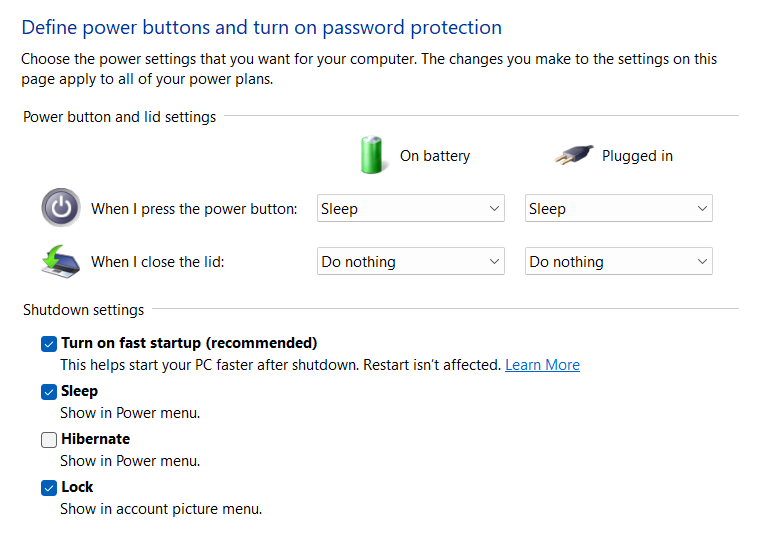
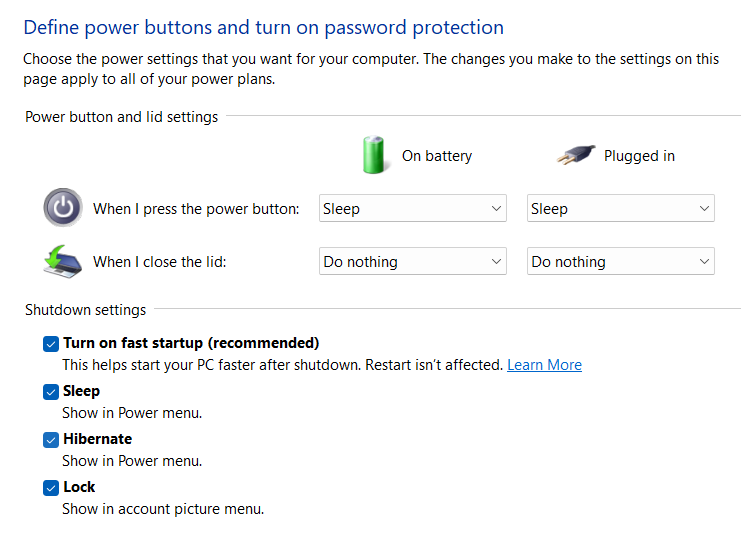
- Under Shutdown settings, check Hibernate
- Click Save changes
Hibernate is now enabled.
How to Use Hibernate
Once enabled, you can activate Hibernate in two common ways.
Option 1: Start Menu (Standard Way)
- Click Start
- Click the Power icon (bottom-right of the Start menu)
- Select Hibernate
Option 2: Power User Menu (Ctrl + X)
- Press Ctrl + X
- Select Shut down or sign out
- Choose Hibernate
(Hit Ctrl+X, then release and hit U then release and hit H).
Both methods do the same thing—use whichever feels more natural.
Does Hibernate Use Disk Space?
Yes. Windows creates a file called hiberfil.sys that stores your session.
This file typically uses about 40–75% of your installed RAM.
On modern systems with SSDs, this is usually not a problem.
Final Thoughts
- Lock is for quick privacy
- Sleep is for short breaks
- Hibernate is for long pauses with zero power use
If you use a laptop or want maximum battery savings without closing apps, enabling Hibernate on Windows 11 is absolutely worth it.
More Blog Articles